Azure Data Factory datasets
Kanva imports data referenced by published Azure Data Factory definitions. An ADF dataset describes a location; the connection reads the approved SQL table or file at that location. It does not run pipelines or reproduce their queries, filters or output history. Microsoft Fabric Data Factory items are not supported.
Before you begin
Your administrator approves the factory and separate data-store connections. The factory's Entra application needs read access to its published dataset and linked service definitions. The backing connection needs its own restricted data access. A successful factory test confirms metadata access; each table/file also needs an administrator-approved mapping and a qualified reader deployment.
Supported definitions are literal Azure SQL base tables and single DelimitedText or flat Parquet files on Azure Blob Storage or ADLS Gen2. Parameterized paths, wildcards, folders and arbitrary queries are unavailable. Text must use the approved UTF-8 header/delimiter/quote/null format. Parquet must use supported scalar types and uncompressed or Snappy pages. Your administrator can identify the exact limits.
Create a connection
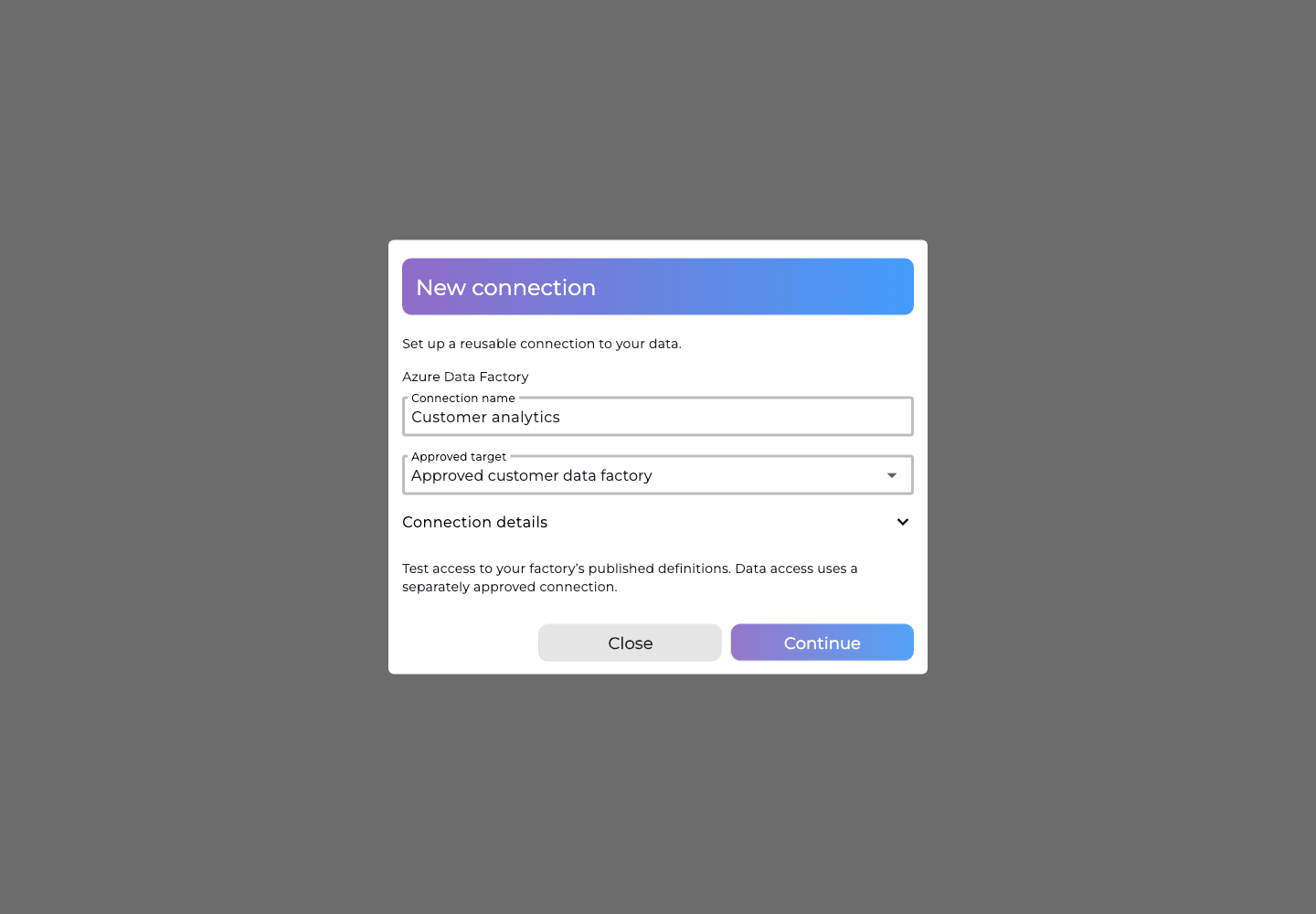
- Open New data source > Azure > Azure Data Factory.
- Name the connection and choose the approved factory.
- Choose Continue, enter the application secret and Save credentials.
- Choose Test connection, then Use connection after the test succeeds.
The connection is reusable. It can activate before any reference mappings exist. Secrets are write-only. Connection details and administrator guidance are available in the setup dialog.
Import a dataset
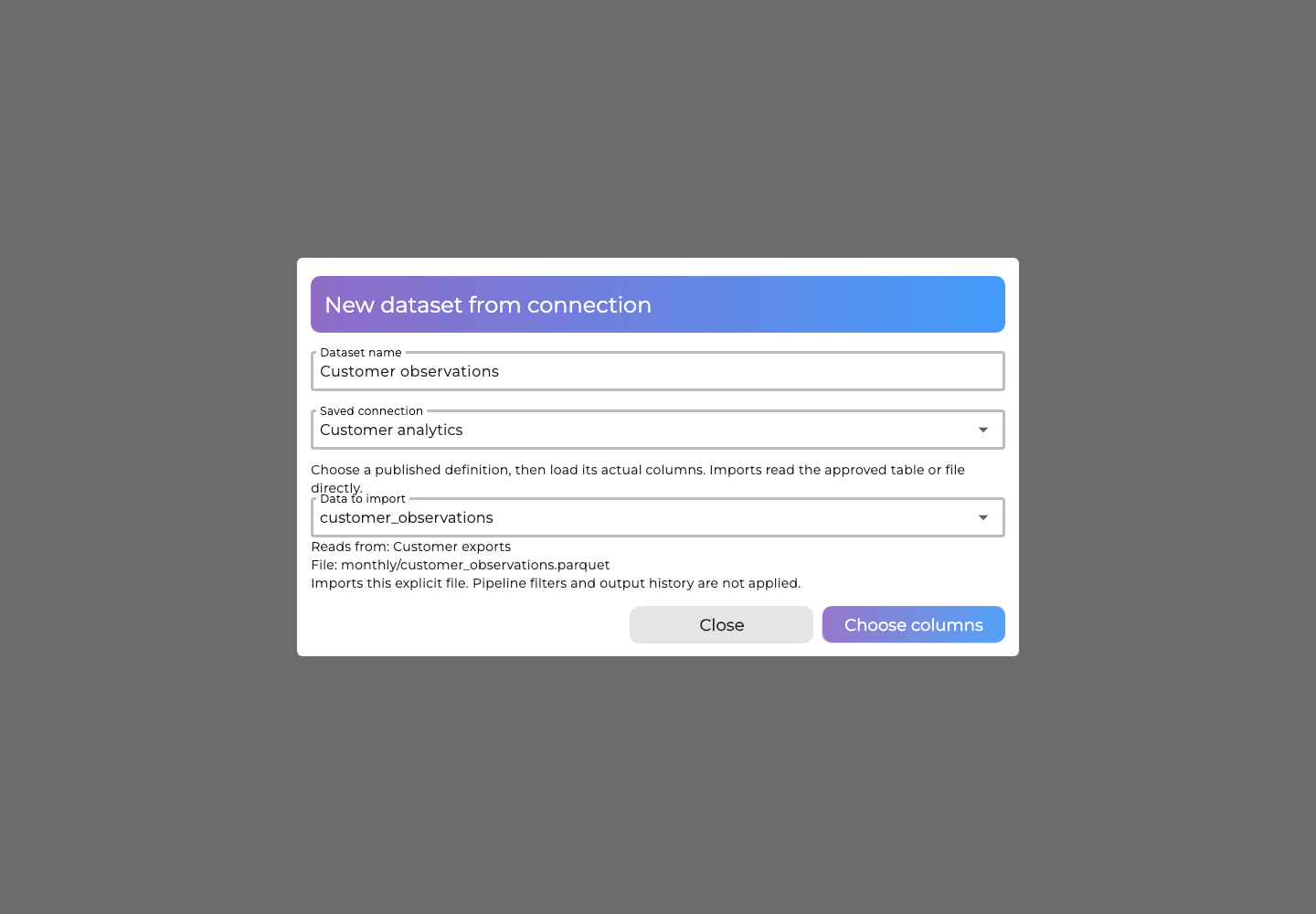
- Open New dataset > Azure > Azure Data Factory and choose the saved connection.
- Choose Find tables, then a published reference. Check the displayed backing connection and literal table/file. Administrator setup needed means the administrator must approve that reference before it can be imported.
- Choose Choose columns. SQL ordering-key fields remain selected. Review and confirm each selected file column's meaning; native decimal precision is fixed.
- Choose Preview, then Import data.
Kanva saves a complete verified import automatically. Empty or failed reads preserve previously imported data. There is no second approval step or snapshot selector. Text values remain text, including numeric-looking values. SQL and Parquet decimals and integers retain their exact values in imported data; model inputs use the normal numeric conversion rules.
Use and refresh the data
Select the imported dataset in the ordinary project form, then choose targets, drivers and settings using the usual project controls. Importing does not start training. A project retains the input it was bound to when the dataset is refreshed.
Choose Refresh data for a new full import. A changed definition or schema may require administrator reapproval and new column selection. The preview can differ from a later import. Kanva checks factory definitions before and after the data read; those checks are separate from the SQL transaction or file version.
If your administrator approved a specific historical Blob version or snapshot, refresh keeps reading that approved data. Ask the administrator to change the backing connection and mapping when you want a different version. Other file connections refresh from the current file.
Disabling the source stops future reads while authorized imported data remains usable. Revoking an original data grant or reference approval also blocks affected retained access. If an import's outcome is uncertain, let Kanva recover that same operation or use Cancel operation; do not create another import to guess its status. No Azure data is deleted when a Kanva dataset is removed.